




The best word processing software for iPad depends on how you actually work: Microsoft Word is usually the safest pick for DOCX accuracy and professional exchange, Google Docs is strongest for fast real-time collaboration, Apple Pages feels most natural for Apple users, and Scrivener, Ulysses, or iA Writer fit focused long-form drafting better than office-first apps.
- Why Is the Best iPad Word Processor Different for Every Workflow?
- Is Apple Pages the Best Built-In Word Processor for iPad Users?
- Is Microsoft Word the Best iPad Word Processor for DOCX and Professional Editing?
- Is Google Docs the Best iPad Option for Real-Time Collaboration?
- Is WPS Office the Best All-in-One Word Processor Suite for iPad?
- Is Ulysses the Right iPad Word Processor for Long-Form Writers?
- Is Scrivener Better for Research-Heavy and Book-Length Writing on iPad?
- Is iA Writer the Best Distraction-Free Writing App for iPad?
- Is Zoho Writer a Smart Choice for Business Workflows on iPad?
- Is ONLYOFFICE Documents Best for Private Hosting and Office-Style Files?
- Is SoftMaker TextMaker Best for Desktop-Style Document Control on iPad?
- Is MobiDocs a Strong iPad Choice for Flexible Office Work?
- Is Dropbox Paper Good Enough for Simple iPad Document Sharing?
- Is Bear Useful as a Minimalist Writing Option on iPad?
- Is Notes Writer Better for Annotation and Handwritten Work on iPad?
- Is Werdsmith Best for Writing Habits Rather Than Heavy Formatting?
- Is LibreOffice a Real Alternative for iPad Users Looking Beyond Mainstream Suites?
- What Types of Word Processing Software Matter Most for iPad Buyers?
- What Does Word Processor Software Actually Do on an iPad?
- What Problems Do People Run Into With iPad Word Processors?
- How Do the Top iPad Word Processors Compare at a Glance?
- How Do the Top iPad Word Processors Compare at a Glance?
- How Should You Match an iPad Word Processor to Your Real Workflow?
- Which iPad Word Processing Apps Are Actually Free to Use?
- Which iPad Word Processor Is Best for Collaboration?
- Which iPad Word Processing Apps Work Offline?
- Which iPad Word Processor Has the Best Format Support?
- Are iPad and iPhone Word Processing Apps Secure Enough for Private Files?
For most people, the right answer is not one universal winner but the app that best matches your mix of format compatibility, offline editing, collaboration, pricing, and how much structure or simplicity you want on an iPad.
In practice, the strongest shortlist includes WPS Office, Zoho Writer, ONLYOFFICE Documents, SoftMaker TextMaker, MobiDocs, Dropbox Paper, Bear, Notes Writer, Werdsmith, and LibreOffice if your priorities sit outside the usual office stack. I’ve found that the “best” choice changes fast once writers, students, and teams start testing where their files actually live and how their documents move between apps.
Why Is the Best iPad Word Processor Different for Every Workflow?
The best iPad word processor changes by workflow because no single app handles business documents, book projects, live team editing, and private drafting equally well.

On a tablet, small differences matter more than marketing pages admit. A tool may look polished but fall apart when time zones, shared edits, and version chaos enter the picture. Another may feel plain yet solve file ownership, layout control, and offline export better than flashier rivals. That is why serious buyers should read technical documentation, not just a feature page.
My experience is that selection gets easier when you test the basics first: external keyboard feel, voice dictation, search and replace, spell check, auto-save, and version history. Those boring details affect writing experience more than a huge feature list.
A broad market now serves businesses and individuals with streamlined, diverse tools offering collaborative capabilities and formatting options. A seasoned writer may want a system that helps elevate rhythm and focus; a manager may care only about whether the file survives review without damage.
Is Apple Pages the Best Built-In Word Processor for iPad Users?
Apple Pages is the best built-in iPad word processor for people who live inside the Apple stack and want a polished editor with good layout control.
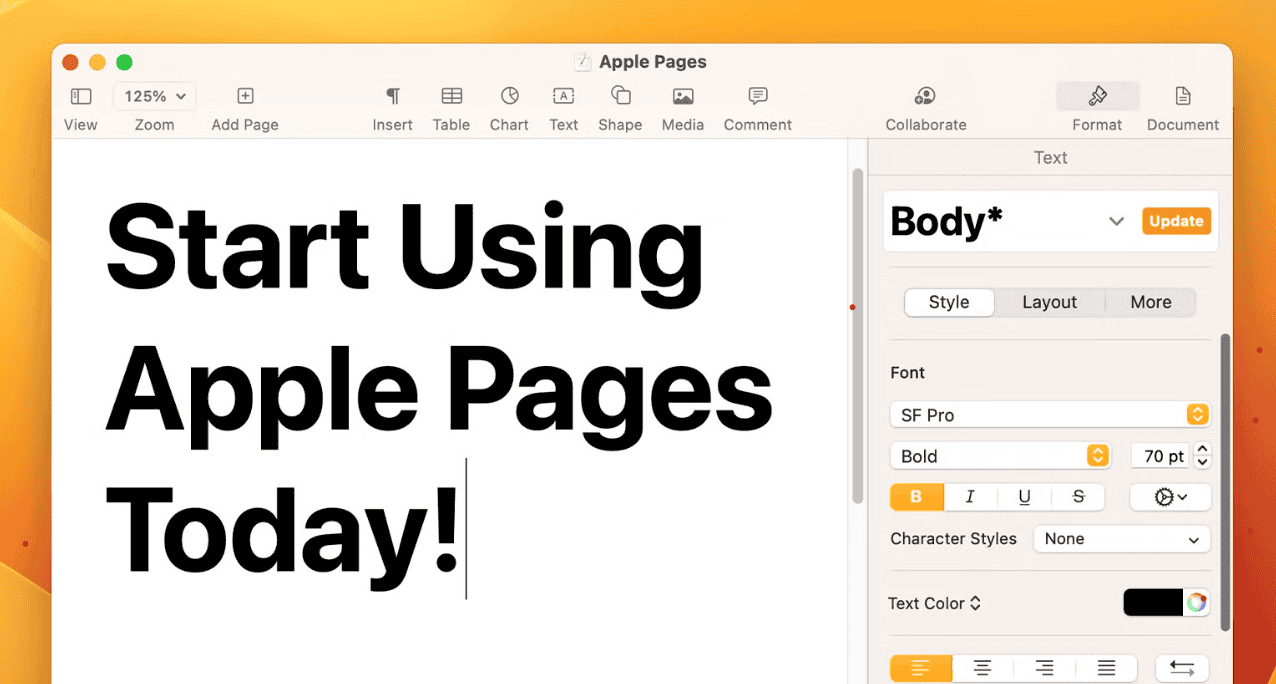
Because it ships effectively free with Apple hardware and sits close to iPadOS, macOS, and iOS, the setup friction is minimal. iCloud and iCloud sync keep files moving well across Apple devices, while Apple Pencil support, Presenter mode, and even Box connectivity give it more range than many people expect. I’ve seen it work especially well for visually led schoolwork and clean internal documents.
The deeper strength is historical design maturity. January 27, 2010, version 1.4, May 31, 2011, version 1.5, October 12, 2011, and iWork ’05 all mark steps in how Pages became a touch-first editor rather than a desktop transplant. That matters because Apple-device continuity, sleek design, and a user-friendly interface still feel intentional.
Pages also handles footnotes, endnotes, equations, Documents in the Cloud, and media-rich document creation, while supporting Word fidelity well enough for many cases. Still, I would not ignore its limits: global search and replace is weaker than many expect, enterprise collaboration is not its core strength, and cross-platform work with Microsoft Word, Google Docs, or a strict corporate review chain can expose the edges of the Apple ecosystem.
Is Microsoft Word the Best iPad Word Processor for DOCX and Professional Editing?
Microsoft Word is the best iPad word processor when exact DOCX handling and professional review matter more than elegance or simplicity.
If your documents go to clients, universities, publishers, employers, or legal teams, Word remains the safest route because it preserves conventions around styles, comments, and tracked revisions. The iPad app supports DOC, OneDrive, Google Drive, SharePoint, PDF-to-Word conversion, and real-time coauthoring, which makes it practical for contracts, academic submissions, and corporate reports moving across departments.
I also trust Word more than most rivals when permissions, accessibility support, and keyboard shortcuts need to line up with broader company habits. The app inherits logic from the MS Office suite, so files often pass more cleanly into Excel or PowerPoint workflows than they do in lighter editors.
The tradeoff is obvious. A Microsoft 365 plan, once formerly Office 365, starts at $69.99/year or $6.99/month, and unsupported versions can slip into reduced-functionality mode after a licensing-related deadline. Word is also heavier than a minimalist tool, but for selected text review, a serious voice-control workflow, and a familiar grammar and spelling checker, that weight usually buys reliability.
Is Google Docs the Best iPad Option for Real-Time Collaboration?
Google Docs is the best iPad option for fast collaboration when the job depends on a shared document rather than a file passed around manually.
The reason is simple: suggestions, comments, Drive permissions, and live editing feel natural when several people work across a browser, web browser, phone, and desktop at once. For distributed teams, multiple people can work simultaneously without the usual attachment mess. I still think that remains its clearest advantage over more traditional processors.
On iPad, though, collaboration quality and offline confidence are different questions. Offline mode works best when files are stored locally or recently synchronized, and you should test airplane-mode editing plus conflict recovery before trusting it on travel days or deadline nights.
The platform also adds value for Workspace subscribers, especially with Gemini features layered into a familiar Google account environment. Cost is modest by business standards at around $6/user/month, but the real win is not price; it is easy sharing through cloud-based storage that removes friction when speed matters.
Is WPS Office the Best All-in-One Word Processor Suite for iPad?
WPS Office is the best all-in-one iPad suite for people who want documents, spreadsheets, presentations, and PDF tools inside one app.
That breadth matters more than many reviewers admit. The suite pulls together Word, Excel, PowerPoint, PDFs, a Writer component, OCR scanning, translation tools, and AI writing aids, so you can move from reading a file to editing it without jumping between apps. For students and small teams, that reduced app switching can be more valuable than deeper specialist features.
The suite also benefits from wide platform support across Windows, macOS, Android, and iOS, plus cloud synchronization and a large template library. I’ve found it useful when someone needs one utility belt instead of a collection of narrow tools.
The caution is familiar: some features sit behind paid subscription tiers, the free build may be ad-supported, and there are recurring privacy concerns around broad, robust all-in-one platforms. Still, at $35.99/year or a free version with ads, WPS remains one of the more practical value plays on iPad.
Is Ulysses the Right iPad Word Processor for Long-Form Writers?
Ulysses is the right iPad word processor for long-form writers who care more about organization and sustained drafting than office-style formatting.

The app combines Markdown writing with a library model built on sheets, groups, and goals, which suits essays, articles, books, and research notes surprisingly well. I’ve always thought its calm interface helps people stay with a piece longer, especially when the project grows beyond a single file.
Its integrated library and configurable styles make exports flexible, and the app works smoothly across iPad, iPhone, and Mac. It also supports grammar checker tools, different export routes, and the kind of structure that helps a literary masterpiece coexist with quick blog entries or even heartfelt letters.
The price of that polish is a subscription, and some users hit a page-layout burden when they need precise design rather than focused drafting. Even so, for writers who want an immersive experience during longer sessions, Ulysses remains one of the most coherent systems available.
Is Scrivener Better for Research-Heavy and Book-Length Writing on iPad?
Scrivener is better for research-heavy and book-length writing on iPad because it treats a manuscript as a structured project instead of one long scrolling document.
That difference becomes obvious once a draft turns into chapters, fragments, and supporting files. Binder, Corkboard view, and Split view help you manage a manuscript, break a chapter into parts, move a scene, and keep a research note beside the draft. For novels, screenplays, and research papers, that flexibility is not cosmetic; it changes how the work gets built.
The app also handles comments, footnotes, compilation, and export to Final Draft, while Dropbox sync keeps the iPad app tied to a desktop version. I especially like how solid offline work and forcing users to let sync complete first create a more disciplined writing routine.
There are tradeoffs. Scrivener carries real interface complexity, is not ideal for broad live collaboration, and asks patience from new users. Pricing starts at $50.99 for students and academics and $59.99 for the full version, but for authors who value an organizational powerhouse, high level of customization, and detailed writing statistics, the cost can be justified.
Is iA Writer the Best Distraction-Free Writing App for iPad?
iA Writer is the best distraction-free iPad writing app for people who want speed, clarity, and minimal visual noise.
The strength of the app is not feature volume but restraint. Focus Mode, a Markdown-first editor, syntax highlighting, and style check all reinforce direct drafting. When I use it, the app feels built for first drafts rather than polished enterprise documents, and that is exactly why it works.
Storage and export are flexible enough for serious use. You can work from local files, move through export paths for HTML, DOCX, and PDF, and avoid getting trapped in a cloud-only editor model. The philosophy is basically that formatting can wait until the words are right.
Because of that, iA Writer is ideal when you want the lowest-friction path to a exportable draft. It is less suited to complex typography or precise page design, but the one-time purchase model makes it easier to evaluate than another recurring subscription.
Is Zoho Writer a Smart Choice for Business Workflows on iPad?
Zoho Writer is a smart iPad choice when documents sit inside business processes rather than pure writing sessions.
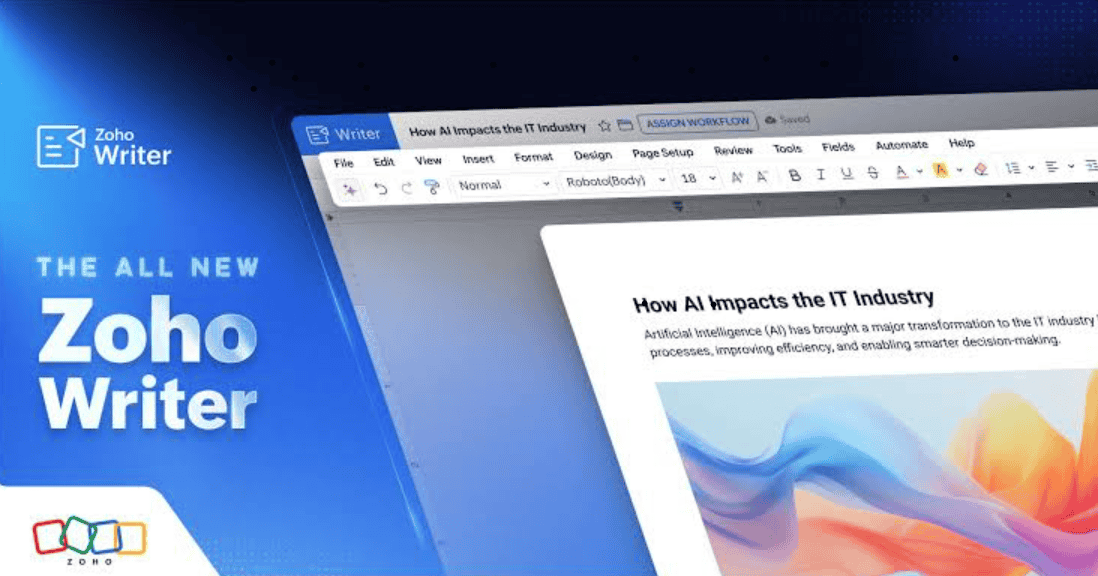
The app stands out through ties to Zoho Workplace, WorkDrive, and Zia AI, but those names matter only because they support useful real operations. If your team spans sales, operations, HR, or other customer-facing teams, Zoho Writer can turn drafts into part of a larger review and approval chain instead of isolated files.
That makes it more than an editor. Features aimed at repeatable business documents, manual handoffs, and a shared review process can reduce the usual chain of attachments that slows teams down. I’ve seen this matter more than fancy prose tools in organizations with routine document flow.
The limit is ecosystem reach. Compared with Microsoft or Google, there is a smaller third-party ecosystem, and questions around identity management, approvals, and whether a feature is web-first or mobile-first still matter. For that reason, Zoho Writer shines most when the document is embedded in a managed business system.
Is ONLYOFFICE Documents Best for Private Hosting and Office-Style Files?
ONLYOFFICE Documents is best for iPad users who want Office-style editing without giving up control over hosting and storage.
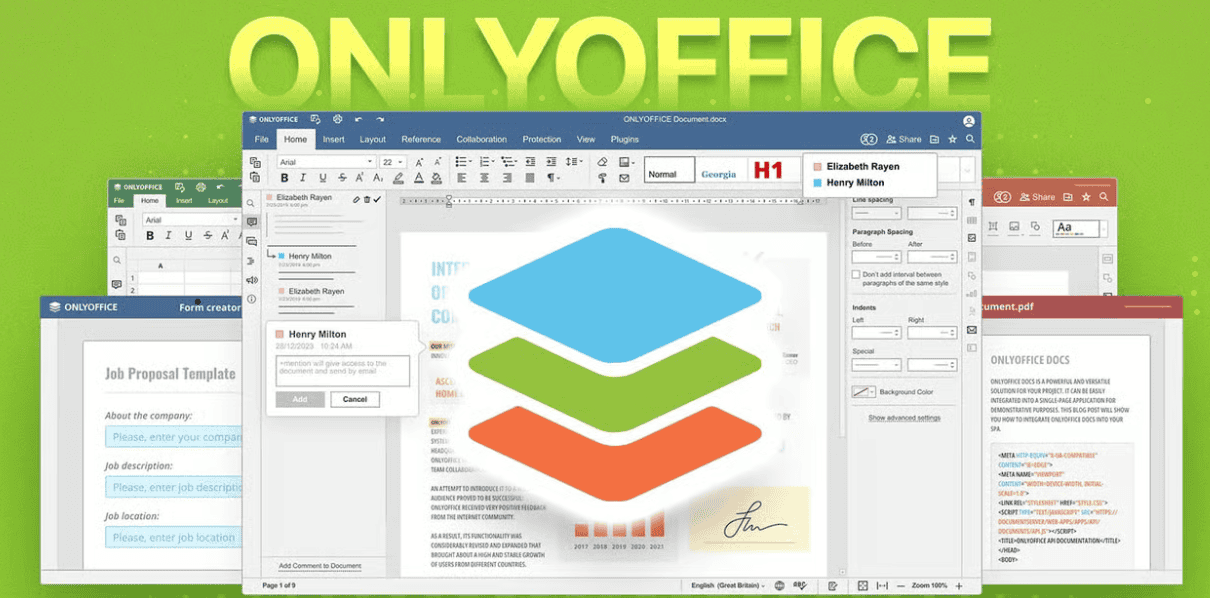
The app supports DOCX, XLSX, PPTX, HWP, HWPX, PDF form filling, and form creation, while connecting to ONLYOFFICE Cloud, self-hosted servers, and WebDAV. That combination is rare on iPad, and it matters whenever governance or data location is part of the buying decision.
What I like most is the emphasis on a vendor account system that is optional rather than mandatory. Questions like document ownership, where the file lives, and how it behaves in a private server environment get treated as first-class concerns rather than afterthoughts.
That said, the interface still reflects compromises of a mobile editor, and buyers should test how a server-linked setup behaves in practice. If your priority is private control plus an ad-free editor with broad format support, ONLYOFFICE is one of the few iPad options that feels purpose-built for that brief.
Is SoftMaker TextMaker Best for Desktop-Style Document Control on iPad?
SoftMaker TextMaker is best for iPad users who want a document editor that behaves more like traditional desktop software.
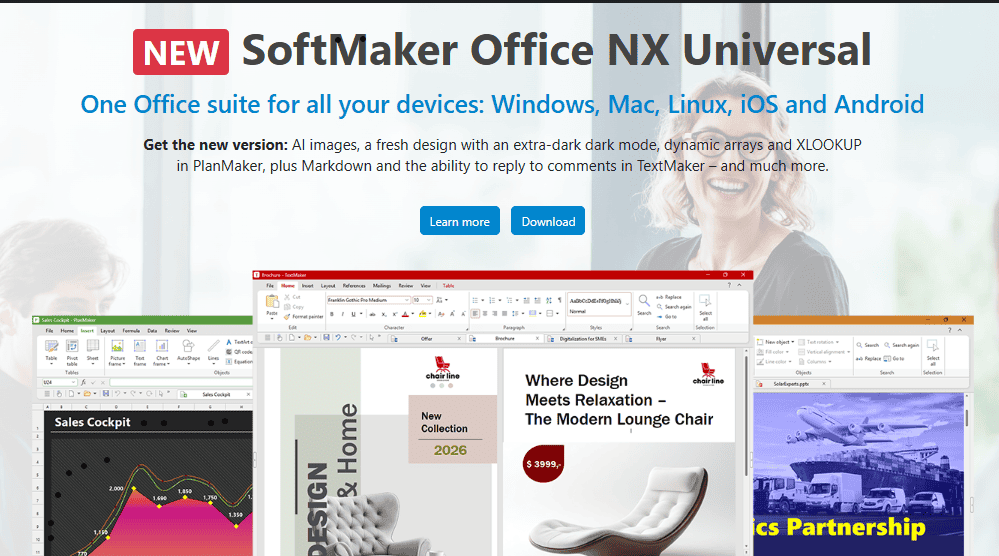
Its appeal comes from a strong document model: DOCX as a native format, real page breaks, headers, and deeper handling of long files than many tablet-first tools attempt. For people who think in structured pages rather than endless notes, that difference is real.
The app also supports Apple Pencil Scribble input, a multilingual interface, and paid expansion paths through an NX license. I’ve found it more appealing to users who create formal, finished documents than to those who mostly brainstorm or collaborate live.
Pricing and packaging are a mixed bag. FreeOffice TextMaker exists, some features depend on premium versions, and the paid side starts at $69.95. But for those who need a stable conventional editor and respect the habits of Windows and Linux office users, TextMaker earns attention.
Is MobiDocs a Strong iPad Choice for Flexible Office Work?
MobiDocs is a strong iPad choice for people who want a flexible office tool that balances editing power with broad file support.

Inside the broader MobiOffice family, the app sits beside MobiSheets and MobiSlides, and that matters because some users genuinely want a complete suite rather than a standalone writer. The platform reports over 250 million users across 195 countries, pricing of $39.99 per user per year, and 15,853 Ratings, which at least signals market maturity.
The bigger practical advantage is compatibility. Support for ODT, PPTX, Apple iWork, Docs, Sheets, Slides, and direct ties to MobiDrive make it easier to handle mixed office environments. I also like the touch-optimized editing feel, which is often overlooked in software that merely ports desktop habits to a tablet.
There is a broader value case too. With formerly OfficeSuite branding, a 7 days trial window, and standalone apps alongside bundled tools, the suite offers affordable solutions for buyers who need range without committing immediately.
Is Dropbox Paper Good Enough for Simple iPad Document Sharing?
Dropbox Paper is good enough for simple iPad sharing and lightweight collaborative drafting, but it is not a full replacement for a serious word processor.
Its appeal is obvious: you open a Dropbox account or free account, work from a web browser, invite friends or classmates, and start editing without friction. For people on tight budgets, that low barrier still has real value.
The weakness appears when the job gets demanding. The platform offers no extra software convenience, but also no offline editing, limited format control, and little support for advanced layout. In my experience, it works best as a shared scratchpad, not as a final-document engine.
So yes, it can help if the goal is quick exchange, but the moment specialized needs or advanced document design control appear, Dropbox Paper starts to feel less suitable for complex tasks than the more mature alternatives.
Is Bear Useful as a Minimalist Writing Option on iPad?
Bear is useful on iPad when you want a beautiful, lightweight writing space that blends notes and longer drafts.

The attraction is not depth in office features but elegance in handling rich formatting, image support, and tag-based organization. For people who mix ideas, snippets, and real paragraphs, that blend can be more useful than a stricter writing tool.
Bear also layers in checklists, customizable folders, dark mode, and visual themes that give the app a more crafted tone than many functional rivals. I know writers who stay in it simply because the environment feels less clinical and more personal.
The tradeoff is that serious export and device syncing push you toward Bear Pro. Even so, for a personalized look, quick capture, and occasional additional export options, Bear remains a compelling minimalist option.
Is Notes Writer Better for Annotation and Handwritten Work on iPad?
Notes Writer is better for annotation-heavy iPad work than most general word processors because it bridges typed and handwritten workflows.
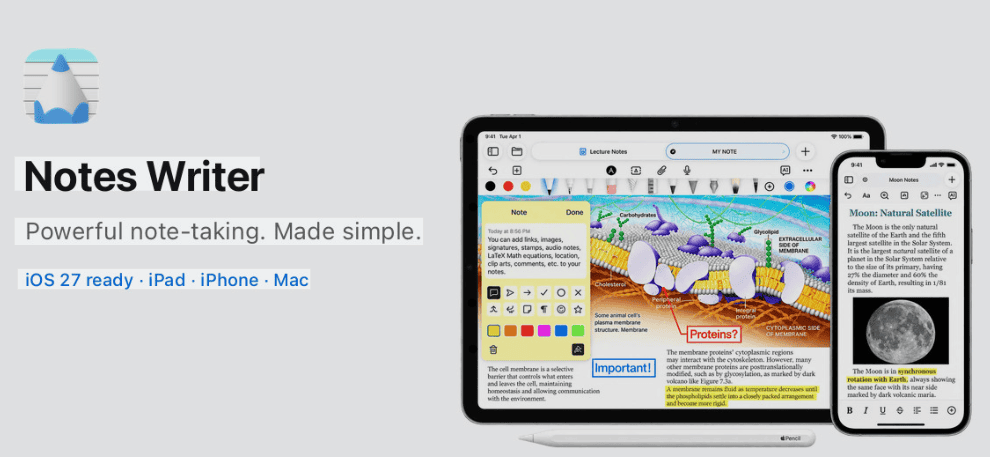
That matters if your process involves Apple Pencil handwriting, PDF markup, form-filling, or formal document signing alongside basic drafting. Many apps handle one of those jobs; fewer handle them together in a way that feels coherent for students and professionals.
The strengths extend to cloud syncing, links to major storage services, and folder organization that helps keep references and annotated files under control. For review-heavy academic or client work, that structure is useful.
The downside is usability friction. Cut-and-paste functions can feel clunky, and page-load times may slow down on larger documents. Even so, for handwritten notes and mixed annotation work, Notes Writer offers a different type of value from conventional word processors.
Is Werdsmith Best for Writing Habits Rather Than Heavy Formatting?
Werdsmith is best when your main problem is staying consistent with writing, not producing heavily formatted documents.
The app is clearly aimed at novelists, bloggers, and even screenwriters who respond to momentum tools such as word goals, writing rituals, and other motivation-based features. In that sense, it feels more like a writing discipline system than a full document studio.
Security and continuity get some thoughtful touches too. Face ID, Touch ID, Apple Watch support, and cloud backup help keep files moving and protected while habits stay intact.
What it does not try to be is equally important. Heavy formatting tools and in-depth formatting are not its home ground, so Werdsmith works best when process matters more than visual output.
Is LibreOffice a Real Alternative for iPad Users Looking Beyond Mainstream Suites?
LibreOffice is a real alternative in the broader word-processing conversation, but for iPad users it is more relevant as a format and ecosystem reference than as a native tablet-first solution.
The reason it still matters is familiar: LibreOffice Writer is open-source, carries no direct costs, and supports multiple formats tied to office reality, including Microsoft® Word (.docx), Excel.xlsx), PowerPoint.pptx, and Publisher-related exchange expectations. Anyone moving between iPad and desktop office environments should at least understand that position.
There is also institutional weight behind it. As the successor to OpenOffice.org, LibreOffice emphasizes modern and open standards, a simple interface, and a surprisingly powerful set of document tools for users who care more about control than polish.
Still, its visual feel can seem dated, and there are recurring compatibility issues with complex Microsoft files. That does not erase its value, but it does define where it fits in a modern iPad workflow.
What Types of Word Processing Software Matter Most for iPad Buyers?
The types of word processing software that matter most for iPad buyers are the categories that change how documents are created, shared, and finalized.
- Commercial Word Processors usually involve purchase decisions and favor broad compatibility.
- Open Source Word Processors appeal to users seeking free alternatives and longer-term control.
- Online Word Processors reduce downloading and installing software, often running through a browser.
- Mobile Word Processing Apps are shaped for smartphones and tablets first.
- Specialized Word Processors fit specific industries or workflows built around organizing and structuring large writing projects.
- Collaborative Word Processors focus on shared editing where many users can edit simultaneously.
- Integrated Suites connect writing with spreadsheets and presentations.
- Minimalist Word Processors stay lightweight and focused, like FocusWriter in the desktop conversation.
- Desktop Publishing Software such as Adobe InDesign or Scribus fits brochures, magazines, and other layout-driven work more than standard drafting.
In practice, most iPad buyers do not need every category. They need to know which class their own work belongs to before they start comparing brands.
What Does Word Processor Software Actually Do on an iPad?
Word processor software on an iPad lets you create, revise, style, and share documents in ways that go far beyond simple note-taking.
At its core, a word processor software package is a digital tool that lets you type, change stuff around, and make things look nice without wrestling with paper-era limitations. Students use it for school projects, a writer may treat it like a modern fancy typewriter, and a business user depends on it for slick reports and important documents.
Modern apps also make teamwork ordinary. You can add image and text, clean up structure, and work on the same document with collaborators who are far apart. That mix of solo drafting and shared editing is the real jump from simple notes to serious document work.
What Problems Do People Run Into With iPad Word Processors?
People run into recurring iPad word processor problems around compatibility, performance, subscriptions, and file handling.
Some issues look small until a deadline exposes them. Compatibility challenges show up when one app changes spacing or comments from another. Performance concerns appear when large files feel sluggish or when key functionalities vanish on mobile versions.
Other problems are more commercial than technical. Many apps keep important advanced features behind a subscription, while “free” versions may limit export, syncing, or review tools. I’ve also seen file management difficulties become the deciding factor once users start storing files across cloud accounts and multiple devices.
| Problem | Real impact on iPad use | What to test first |
| Compatibility challenges | Formatting shifts between different devices | Open, edit, and re-export the same file |
| Performance concerns | Lag on complex or media-heavy documents | Scroll, search, annotate, and save a large file |
| Limited features | Missing review or export tools | Compare free and paid versions directly |
| File management difficulties | Confusion across folders and services | Test sync paths and recovery behavior |
How Do the Top iPad Word Processors Compare at a Glance?
The top iPad word processors differ most in document fidelity, collaboration model, pricing structure, and how much writing focus versus office breadth they offer.
A side-by-side view makes the tradeoffs easier to see than long feature pages do. In practice, the best fit usually comes down to whether you prioritize review accuracy, shared editing, privacy, or a cleaner drafting environment.
How Do the Top iPad Word Processors Compare at a Glance?
| App | Best fit | Pricing / value signal | Standout angle |
| Apple Pages | Apple users, layout-focused creators | Free, ★★★★ | Polished layout, Pencil integration |
| Microsoft Word | Enterprise, DOCX-heavy professionals | Microsoft 365 subscription, ★★★★★ | Highest DOCX fidelity, M365 integration, Copilot |
| Google Docs | Workspace, Teams, collaborators | free core model, ★★★★ | Live coauthoring, Drive sharing |
| Zoho Writer | Business teams | Generous free tier with paid layers, ★★★★ | Workflow automation, Zia assistant |
| ONLYOFFICE Documents | Privacy-conscious users, Office format users | free core, self-host options, ★★★★ | Self-hosting, Office fidelity |
| WPS Office | Budget users wanting an all‑in‑one suite | Low-cost subscription tiers, ★★★ | Docs/Sheets/Slides, PDF/OCR, Broad feature set, competitive price |
| SoftMaker TextMaker | Power users wanting desktop-grade tools | One-time, in-app unlock, ★★★★ | DOCX-native, desktop-like word-processing, pro unlocks |
| iA Writer | minimal drafting fans | one-time on iOS, ★★★★ | Markdown-first, focus mode, reliable exports, Minimal, high-quality typing experience |
| Ulysses | Long-form authors, project writers | Subscription required, ★★★★ | Organized library, polished export tools |
| Scrivener | researchers and long manuscripts | Paid app, ★★★★ | split research/editor, compile/export, targets, Best for research-heavy project structuring |
How Should You Match an iPad Word Processor to Your Real Workflow?
You should match an iPad word processor to your real workflow by starting with the document’s final destination, not with the app’s marketing pitch.
A useful shortlist usually looks like this:
- Apple-centric users who want a layout-capable editor and polished Apple workflow should start with Pages and test Pencil features.
- Teams working under Microsoft permissions or inside Microsoft 365 teams should prioritize Word, especially where tracked changes matter.
- People who need simple sharing and group drafting should begin with Google Docs.
- Users who need business automation should look first at Zoho Writer.
- Buyers who need private hosting should test ONLYOFFICE before consumer-first tools.
- Anyone wanting a broad toolset inside all-in-one software should evaluate WPS Office carefully, especially if they can tolerate a busier interface and subscription gates.
- Writers who want traditional solo editing should look at TextMaker.
- Writers who prefer minimal drafting should test iA Writer first.
- Users planning thought to export publishing workflows should compare Ulysses and Scrivener for polished publishing exports or larger scripts and research structures.
My practical advice is simple: treat feature claims as tests, not assumptions. Use a free tier or trial, verify pricing, check supported iPad versions, inspect storage behavior and export formats, and confirm dictation support plus keyboard compatibility on the vendor website or App Store page before you commit.
Which iPad Word Processing Apps Are Actually Free to Use?
Several iPad word processing apps are genuinely usable at no cost, but almost every free version comes with limitations.
Pages is effectively free for Apple users, Google Docs has a strong no-cost tier, Dropbox Paper is free with a Dropbox account, and some office suites offer trimmed free entry points. In practice, the question is less “Is it free?” and more “What gets removed at the free level?”
Typical restrictions show up in exports, syncing, AI assistance, premium templates, or advanced collaboration settings. So a free app can be enough, but only if your work stays within those boundaries.
Which iPad Word Processor Is Best for Collaboration?
The best iPad word processor for collaboration is usually Google Docs because its real-time collaboration model makes it easy for multiple users to edit documents simultaneously.
That answer holds strongest when speed and shared visibility matter more than perfect desktop-style formatting. Teams can jump in quickly, comment live, and avoid the usual attachment confusion.
Microsoft Word is also strong when collaboration has to coexist with formal review and DOCX-heavy exchange. Zoho Writer belongs in the conversation when workflow routing matters as much as shared editing.
Which iPad Word Processing Apps Work Offline?
Several iPad word processing apps work well in offline mode, but the quality of offline editing depends on setup and sync behavior.
In most cases, buyers should verify whether offline mode enabled really means the file is available without an internet connection. Apple Pages, Microsoft Word, Ulysses, Google Docs, and MobiDocs can all support work away from the network under the right conditions.
My rule is to test before trusting. Open the file, disconnect, make edits without Wi‑Fi, close it, reopen it, and confirm the changes survive.
Which iPad Word Processor Has the Best Format Support?
The iPad word processor with the best format support is usually Microsoft Word, though the right app can change if your priority is broader compatibility across free tools.
For strict file compatibility, Word still leads because DOCX remains the format many schools, clients, and businesses expect. WPS Office and MobiDocs also deserve mention because they handle a wide range of common files better than many lighter editors.
If you specifically want top free word processors with strong compatibility, Pages, Google Docs, WPS Office, and MobiDocs are the practical group to test first. The safest move is to judge them by the exact file types you exchange most often, not by the label alone.
Are iPad and iPhone Word Processing Apps Secure Enough for Private Files?
Many iPhone word apps and iPad tools are reasonably secure for normal use, but word processors differ a lot in storage design and access controls.
At the baseline, most mainstream apps provide basic security features, but not all offer built-in encryption or the same degree of extra protection for sensitive work. That matters if the file contains contracts, research, HR notes, or other private material.
For users who care deeply about keeping files secure, apps with stronger access controls, private hosting models, or explicit document encryption options deserve first attention. The safest workflow is never just the app itself; it is the combination of app, storage system, permissions, and how you actually handle the file.