


To install Kodi on an Amazon Fire Stick, enable Apps from Unknown Sources, install the Downloader app, go to kodi.tv, choose the ARMV7A 32-bit Android build, and finish the on-screen install flow. In practical use, a Fire TV device treats the process like a controlled sideload, and once Open appears, Kodi works as a normal media center entry inside the device interface.
- Which Kodi Version Should You Download for Fire Stick Right Now?
- What Is Kodi and What Does It Actually Do?
- Why Do People Use Kodi on a Fire Stick?
- Is It Legal and Safe to Install Kodi on a Fire Stick?
- What Do You Need Before Installing Kodi on a Fire Stick?
- How Do You Enable Apps from Unknown Sources on Fire Stick?
- How Do You Install the Downloader App on Fire Stick?
- How Do You Download Kodi on a Fire Stick?
- How Do You Install Kodi and Open It for the First Time?
- Where Do You Find Kodi After Installing It on Fire Stick?
- Should You Use the 32-Bit or 64-Bit Kodi Build on Fire Stick?
- What Should You Do If Kodi Won’t Install or Won’t Work on Fire Stick?
- How Do You Update Kodi on a Fire Stick?
- Can You Install an Older Kodi Version on Fire Stick?
- How Can You Get More Out of Kodi on Fire Stick with Add-ons?
- How Do You Install Add-ons Inside Kodi?
- What Does Installing a Kodi Add-on Look Like in Practice?
- Which Kodi Add-ons Are Commonly Recommended for Fire Stick?
- Are There Other Ways to Install Kodi on Fire Stick Besides Downloader?
- What Extra Kodi Features and Tools Are Worth Knowing About?
- Do You Need a VPN for Kodi on Fire Stick?
- Can a Seedbox Improve Kodi on Fire Stick?
- Which Kodi Settings Improve the Fire Stick Experience?
- How Do You Reduce Buffering in Kodi on Fire Stick?
- How Do You Make Kodi Run Better on Fire Stick?
- What Are the Real Pros and Cons of Using Kodi on Fire Stick?
- What’s the Bottom Line on Installing Kodi on Fire Stick?
- What Are the Most Common Questions About Installing Kodi on Fire Stick?
- What Other Real-World Kodi on Fire Stick Questions Come Up?
- What Small Tips Make Kodi Easier to Manage on Fire Stick?
- What Should You Be Careful About When Installing Kodi?
- Which Fire TV Models May Not Support Kodi Sideloading?
- How Can You Back Up Kodi Before Changes or Upgrades?
- Which Fire TV Devices Are Mentioned in This Guide?
- Which Apps, Tools, and Services Are Mentioned for Kodi on Fire Stick?
What trips up new users is not the software itself but the odd gap between the app store and direct access. The guide path is simple: use the popular Downloader utility, point it to the official site, and ignore the myth that streaming tools need exotic setup. On most models, the install is short and predictable.
My experience is that services and tools only complicate the process when people chase shortcuts. For clean compatibility, the direct Android package is still the best route, especially when a tutorial is built around the current stable release rather than random reposted files.
Which Kodi Version Should You Download for Fire Stick Right Now?
The right choose for Fire Stick is the latest current stable build that applies to the hardware, not a random repost or an old fork. For most people, the question is less about novelty and more about whether a package will fail to install, whether the file size fits available storage, and whether the release is tested on a current Fire TV device.
Where people get lost is chasing older builds or mixing a previous point release with a previous major version. If you use installation links from an official download archive, you can compare what was released, what is still in testing, and whether a beta such as Beta 1 from June 2026 is worth touching at all.
In practice, I treat Fire Stick updates like appliance firmware. If the current package is reliable, I skip experiments until the beta cycle matures, because downgrade recovery is slower than simply picking the correct stable file once.
What Is Kodi and What Does It Actually Do?
Kodi is a free, open-source player that works as a central hub for organizing and playing digital media from many locations. In plain terms, Kodi handles media files such as videos, music, podcasts, and even some games, while keeping the user’s content in one place rather than spread across mismatched apps.
A lot of people misunderstand Kodi because they treat it like a service instead of a tool. Kodi is legal, it is supported on nearly any device, and its capabilities come from how it connects official and unofficial sources through third-party extensions and local or Internet paths. That is why its features feel broad without the platform owning the files.
From a practical angle, Kodi is closer to a control layer than a catalog. I have found that the real appeal is not just entertainment, but the ability to bring scattered libraries and a wide array of formats into one interface without losing control of the underlying files.
Why Do People Use Kodi on a Fire Stick?
People use Kodi on a Fire Stick because it turns a standard TV into a more flexible viewing setup without forcing one rigid content path. A small stick becomes a companion to a TV screen, and that mix of compact size and affordability is exactly why many households treat it like a lightweight smart entertainment system.
What matters more than hype is control. Kodi lets people customize preferences, pull from different streaming platforms, and keep the software feeling personal rather than locked down. For someone who has tested plenty of boxes, that freedom creates endless possibilities even before extra components are added.
The other reason is practical scale. A Fire Stick can feel more full-fledged than its size suggests, especially when someone wants easier access to mixed sources without buying a larger living-room box.
Is It Legal and Safe to Install Kodi on a Fire Stick?
Installing Kodi on a Fire Stick is legal and can be safe if you use the official URL and avoid untrusted files. The actual risk is not Kodi itself but the sideloaded path, because it bypasses normal app review and makes the user responsible for every file, source, and prompt.
The part I always tell people to respect is the chain of trust. A malicious APK is not theoretical; any hosted file outside official repositories can become a malware vector if it copies the look of real packages. That is why caution, documentation, and validated sources matter more than speed.
The legal side is narrower than people think. Third-party developers can build extensions, but intellectual property rights, terms, and conditions still apply. Some unofficial repositories expose users to harmful, unsupported, or simply dangerous files, and that turns a convenience step into a privacy and security risks problem fast.
What Do You Need Before Installing Kodi on a Fire Stick?
You need a Fire Stick connected to a TV, working Wi‑Fi, a little free space, and a few quiet minutes before installing Kodi. In practice, the setup is simpler than people expect because you do not need a computer, USB drive, or rooting just to sideload the app.
The only preparation I really consider essential is checking that the device is ready for downloads and has stable connectivity. If a Fire Stick is used as part of a network-based setup with local or remote file access later, then planning storage and permissions early saves time.
You also do not need a paid app or developer account for the base installation. If you plan to use home storage or network shares after setup, that belongs to the media organization stage, not the installation stage.
- TV: a connected display for the Fire Stick
- Wi‑Fi: needed for the app download and package retrieval
- free space: enough room for the APK and installation
- minutes: the process is short when the connection is stable
How Do You Enable Apps from Unknown Sources on Fire Stick?
To enable sideloading on Fire Stick, go into Settings, open My Fire TV, enter Developer Options, and switch the required install controls On. The confusing part is not the switch itself; it is that some menus are hidden until the interface is nudged into showing them.
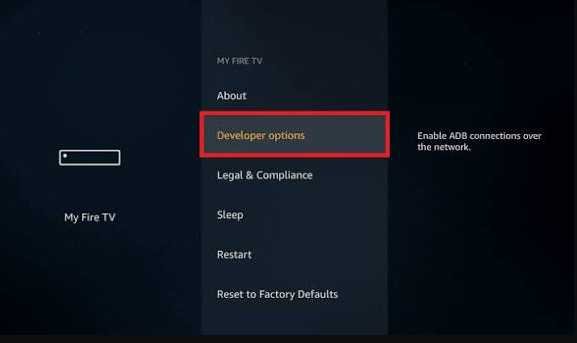
On many devices, open About, highlight the device name, press OK 7 times, then go Back and the missing developer menu should reveal itself. After that, the route is direct: open the Device tools area, review the Applications environment if needed, and change the install toggle.
Some people also turn ADB debugging On, though it is not required for everyone. If prompted to Turn On or Turn Off related items such as Collect App Usage Data or Install Unknown Apps, focus on the settings tied to installer permissions, and verify the option is clearly listed as enabled.
Numbered steps
- Open Settings.
- Choose My Fire TV.
- If needed, open About and press OK 7 times to reveal Developer Options.
- Go Back.
- Open Developer Options.
- Enable Install Unknown Apps or the equivalent install toggle.
- Turn ADB debugging On only if you specifically need it.
How Do You Install the Downloader App on Fire Stick?
To install Downloader on Fire Stick, use the store search, find the app, and approve the file permissions it requests. The process is ordinary, but the role of Downloader is unusual because it acts as the bridge between the store and a manual installer workflow.
From the home screen, open Search, use the icon, type the app name, review the results, and choose Get or Download. Once opened, the app may request permission to access files, and that approval is normal for a utility built around retrieving packages.
I still like Downloader because it is an Amazon-approved sideloading tool rather than a mystery installer. Historically, users also mentioned AFTVnews, and some still compare it with ES File Explorer as a file manager, but for a clean Fire Stick install, Downloader is the simpler route.
How Do You Download Kodi on a Fire Stick?
To download Kodi on Fire Stick, open Downloader, enter the Kodi site address, and select the correct Android package from the download page. Most mistakes happen after the address is entered, not before, because people click the wrong build rather than the wrong website.
Inside Downloader, start from the Home tab, click the URL box, press Go, and wait for the official download page to load in the in-app browser. The file usually starts automatically after you select the proper Android package, and some older guides mention 67.8MB, v20.1, or Nexus, which shows how quickly these package details age.
I avoid shortcut codes unless the user knows exactly what they point to. Tools like the Hashtag Icon, numerical keypad, a site code, or a Toolbox workflow such as 250931 can work, but the transparent route is still the official page where you can inspect the build and the download path yourself.
Numbered steps
- Open Downloader.
- Select the URL box on the Home tab.
- Enter the Kodi website and press Go.
- Wait for the browser to load the official download page.
- Select the Android build that matches Fire Stick.
- Confirm the package download when it starts automatically.
How Do You Install Kodi and Open It for the First Time?
To install Kodi after download, accept the Android installer prompts, finish setup, and open the app once the package completes. The actual installer is brief, but first launch behavior matters because Kodi asks for access and initializes its file structure immediately.
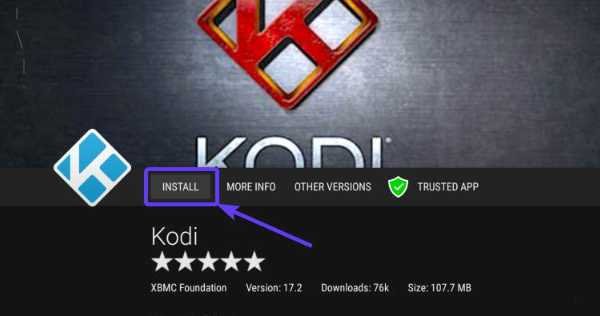
When the installer screen appears, select Install or INSTALL, wait a few seconds, and then choose OPEN or Open. At that point, Kodi may show setup prompts, ask you to Allow storage access, and begin its first-run setup sequence while it loads internal folders and defaults.
I usually recommend finishing the first run before making any changes. After the package is downloaded, tap Continue, let the app ready itself, then remove the installer and delete APK later if you want to clean up storage after the initial launch and multimedia content permissions are complete.
Numbered steps
- Wait for the installer screen after the package is downloaded.
- Select Install or INSTALL.
- Wait a few seconds.
- Choose Open or OPEN.
- Tap Continue through the first setup prompts.
- Allow access if requested.
- Let the first-run setup finish before adjusting anything else.
Where Do You Find Kodi After Installing It on Fire Stick?
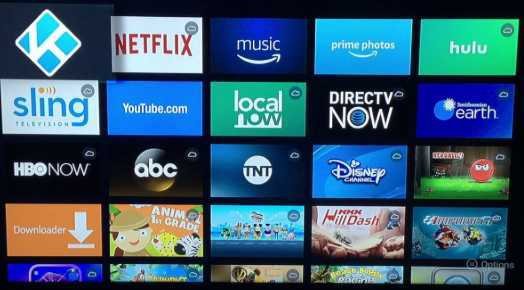
After installation, you find Kodi in the app library area of Fire TV, not always on the first visible row. The app is usually present immediately, but people miss it because the main screen surfaces only a limited list.
Open Your Apps & Channels, then choose See All if the app does not show up right away. From there, you can find Kodi, pin it, press the Menu button, and use Move to Front so the icon is easier to reach during regular use.
I also suggest basic cleanup at this stage. If you want to reclaim space, go back and remove leftover installer files, then remember that Your Apps & Games or the broader library area is still the main place to locate apps in the Future when the home row changes.
Should You Use the 32-Bit or 64-Bit Kodi Build on Fire Stick?
Most Fire Stick users should use the 32-bit Kodi build because it is the most broadly compatible choice for current devices. People often assume newer hardware needs the larger package, but Fire TV behavior is shaped by software environment, not just chip marketing.
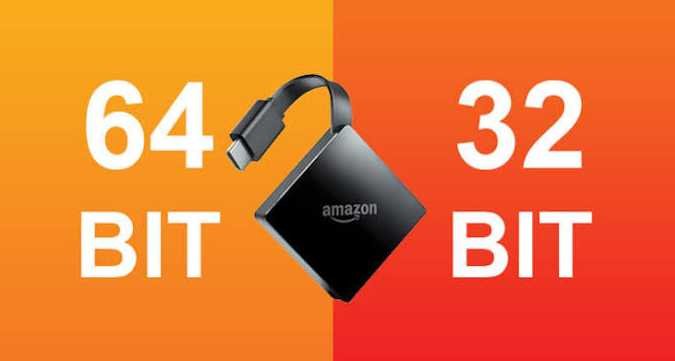
The trap is choosing 64-bit ARMV8A because the label sounds better. Many Fire devices still behave around a 32-bit userland, so a 64-bit APK can create install issues even on 64-bit devices. That is where the guesswork starts, and the practical benefit often does not justify the risk.
| Build | Best Fit | Fire Stick Reality | Practical Note |
| 32-bit | Most devices | Widely accepted under current Fire OS behavior | Lower friction and generally recommended. |
| 64-bit version | Some specialized cases | May conflict with 32-bit userland assumptions | Little practical performance difference. |
| Fire TV box cases | Occasional exception | Certain Fire TV box setups may vary | Only choose if compatibility is confirmed. |
What Should You Do If Kodi Won’t Install or Won’t Work on Fire Stick?
If Kodi will not install or will not run, start by checking architecture, storage, and network access before changing anything else. In my experience, most install problems come from a wrong architecture, not enough storage, or a broken package path rather than from Kodi itself.
A failed install often shows up as App not installed, fails silently, or a package that needs a re-download. If someone grabbed ARMV8A or an x86 build instead of the proper package, the fix is simply choosing the right file. On cramped devices, even 8 GB models can choke if they do not have 200 MB free and room to unpack files.
If the app installs but misbehaves, move into diagnostics. Use Manage Installed Applications, clear app caches, use Force stop, then relaunch. If Downloader can’t reach kodi.tv, inspect the Network. If playback buffers, stutters, or the interface feels sluggish, consider connection speed, heat, interference, storage pressure, and whether the app needs a Restart. If access to files fails, inspect Permissions, storage access, or even whether a corrupted file, bad source, odd file type, or earlier refusal to install broke the flow at every step.
Here is your paragraph organized into a clear table:
| Symptom | Likely Cause | What to Do |
| App not installed | Wrong architecture or bad package | Re-download the correct build. |
| Fails silently | Storage or package mismatch | Check for 200 MB of free space and verify the build type. |
| Site unreachable | Downloader can’t reach kodi.tv | Verify the network connection. |
| Slow app | Slow remote, sluggish performance, or overheating | Restart, cool the device, and free up space. |
| Media problems | Permissions, storage access, or unsupported file type | Review app settings and source files. |
| Broken local files | Corrupted data or failed copy | Scan the disk and check for errors. |
If recovery becomes messy, use Uninstall, then reinstall cleanly instead of improvising around partial failures. I have seen too many different firesticks waste time because people tried five workarounds before fixing the basic cause.
How Do You Update Kodi on a Fire Stick?
To update Kodi on Fire Stick, download the newer package and install it over the existing app when the versions are compatible. In routine use, Fire Stick updates are closer to replacing an app package than running a special updater inside Kodi itself.
For normal point releases, especially something like 21.2 to 21.3, the process is usually simple: download the new file, install straight over, and let Fire TV replace existing app files. Many user settings, your library, and certain add-ons can carry over, which is why cautious users often prefer incremental updates.
The part that deserves extra care is larger migration. Major version jumps such as Kodi 20 to Kodi 21 can affect the database format, so I recommend a back up first. That is not fear talking; it is just the cleaner route when you want the newest version without losing work.
Can You Install an Older Kodi Version on Fire Stick?
Yes, you can install an older Kodi version on Fire Stick if you have the correct package and a reason to step back. I only recommend it when compatibility with an older add-on or setup really matters.
People usually ask about Kodi 21.3 Omega, Kodi 21.2 Omega, Kodi 20.5 Nexus, Kodi 19.5 Matrix, or even Kodi 18.9 Leia when a plugin stops behaving after an update. That kind of rollback belongs to a troubleshooting strategy, not a default habit.
The tradeoff is simple: an archive build can solve a narrow problem, but it also keeps you on legacy software. Unless a specific workflow depends on it, the safer habit is to run a stable current build and only move backward when testing proves you need to.
How Can You Get More Out of Kodi on Fire Stick with Add-ons?
You get more out of Kodi on Fire Stick by adding extensions that widen what the app can do without changing the core player. The key is to treat add-ons as tools with different trust levels, not as magic bundles.
Useful expansion usually comes from clear content options: movies, TV shows, live TV channels, sports events, and documentaries. The reason add-ons matter is extensibility; providers can expose more sources and functions without rewriting the base app.
I would still keep a strict filter. Even when an add-on looks polished, ask whether it is validated, where it is hosted, whether the documentation is readable, and whether the links point to something sensible. Some are well built, some are messy, and some only make sense if a user is willing to pay for the related service.
How Do You Install Add-ons Inside Kodi?
To install add-ons inside Kodi, open the add-on management area, choose the source type, and approve the install. The good news is that the internal flow is far easier than the first Fire Stick sideload.
Open the sidebar menu, go to Add-ons, and work from there. You will usually see areas such as My add-ons, Recently Updated, Install from Repository, and Install from zip file. For most users, the clean route is the official Kodi repository because it reduces trust issues.
From there, pick from the official add-on categories, browse what you need, and install it. If your goal is video playback, video add-ons are the obvious starting point. Think of the interface less like a store and more like a structured way to download and stream features into the same platform.
What Does Installing a Kodi Add-on Look Like in Practice?
A practical Kodi add-on install looks like a short repository workflow followed by one or two confirmation prompts. The point is not the complexity; it is learning the rhythm once so future installs feel routine.
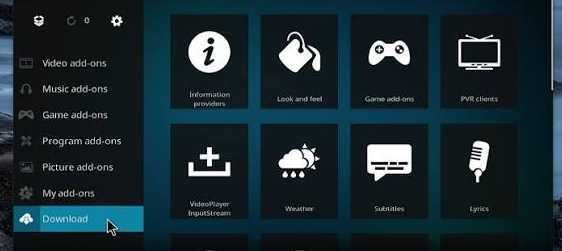
A good example is Crackle, a free video streaming distributor available as an official add-on. You select it, confirm dependencies, and allow the package to install into the Add-ons section. Because it is tied to a known catalog, the process feels stable rather than improvised.
Where beginners get nervous is after the install. Usually there is little configuration, only occasional additional parameters or region behavior. Once the add-on opens, it exposes a media genre path—such as movies or TV shows—and that is when the payoff of repository installs becomes obvious.
Which Kodi Add-ons Are Commonly Recommended for Fire Stick?
Commonly recommended Kodi add-ons for Fire Stick are the ones that are easy to understand, maintained, and tied to recognizable services or content categories. I prefer recommending known names first because it lowers friction for people learning the interface.
A short scan list includes CuriosityStream, Comet TV Live, CNET Podcasts, Twitch, Apple iTunes Podcast, Comedy Central, Court TV Live, FOX News, FilmRise, Pluto, Youtube, Plex, Pluto TV, and the NASA channel. Together they cover documentary content, live stream viewing, gaming broadcasts, eSports, general video, and a basic media server workflow.
Some are better for discovery than daily use. Others work well for comedy shows, stand-up specials, crime documentaries, or on-demand content. The practical test is simple: if the add-on’s catalog makes sense to you and the stream loads consistently, it earns a place on the device.
- CuriosityStream: focused factual video
- Twitch: strong for gaming broadcasts and eSports
- Plex: useful if you already run a media server
- Pluto TV and Pluto: easy entry into casual channel-style viewing
- NASA channel: niche, but a good example of legitimate themed streaming.
Are There Other Ways to Install Kodi on Fire Stick Besides Downloader?
Yes, there are other ways to install Kodi on Fire Stick besides Downloader, but they add layers that most people do not need. I have tested several routes, and the more detours you add, the more likely you are to inherit someone else’s packaging choices.
Common alternative methods include third-party app stores such as Unlinked, APKTime, and Aptoide TV. Some users also rely on launcher-style catalogs like TROYPOINT Toolbox, where a code or curated page points to a preferred Kodi version. These methods are convenient, but they hide part of the file trail.
That said, they can still work if you know what you are doing. A flow might involve Install Unknown Apps, Add a new library, enter EVERYTHING, hit Next, use the search bar, pick Install app, and then Delete leftovers. I only suggest this route when a user specifically prefers tool hubs over the direct site, and even then I would rather see ES File Explorer left as a secondary option.
What Extra Kodi Features and Tools Are Worth Knowing About?
Beyond basic playback, the extra Kodi features worth knowing are the ones that affect interface, source quality, and convenience. These extras do not change what Kodi is, but they do change how comfortable it feels over time.
The biggest categories are Builds, Skins, Debrid Services, and Subtitles. Visual users often start with Aeon Nox: Silvo, Arctic: Zephyr, or Eminence because a unique interface changes the whole mood of the app. Power users tend to notice source quality first, which is why Real-Debrid, TorBox, AllDebrid, and Premiumize come up in discussion.
Practical viewing tools matter too. OpenSubtitles and Subscene help with captions, especially for foreign films or weak dialogue. If a stream source supports high-quality video sources, the jump to full HD or 4K feels obvious, especially when the stream is relatively buffer-free.
Do You Need a VPN for Kodi on Fire Stick?
You do not always need a VPN for Kodi on Fire Stick, but there are cases where it makes practical sense. The best way to think about it is not “VPN or no VPN,” but “what problem am I solving?”
A VPN can help if your ISP throttles streaming, if you need streaming private traffic on an untrusted network, or if you are trying to reach geo-restricted content in a legitimate way. In those cases, reduced ISP throttling or a less obvious traffic signature can be useful. People often mention NordVPN, but any serious choice should be based on reliability and your own threat model.
A VPN does not change the law, erase copyright infringement, or clean up reckless habits. It also does not magically fix broken streams. I treat it as a network utility, not a moral shield, and I would never present legality or bypassing content restrictions as the same thing.
Can a Seedbox Improve Kodi on Fire Stick?
A seedbox can improve a Kodi workflow when the goal is better file handling and off-device media access, not when the goal is merely app installation. It is a niche tool, but in the right setup it reduces strain on the small streaming device.
Think of the seedbox as a remote server built around speed and storage. It can collect media, increase availability, and make download files easier to manage without overloading the stick itself. For users dealing with larger libraries, that separation can be a quiet quality-of-life improvement.
Where it really earns its place is in accessibility and remote access. A Fire Stick can then behave like the endpoint while the heavier work lives elsewhere. For people who keep their own content organized off-device, that split brings real benefits, especially when downloaded content would otherwise crowd the stick.
Which Kodi Settings Improve the Fire Stick Experience?
The Kodi settings that most improve the Fire Stick experience are the ones that reduce clutter, stabilize playback behavior, and make navigation less annoying over time. Most users do not need dozens of tweaks; they need the right handful.
I usually start with video playback settings, resolution, audio settings, and whether hardware acceleration behaves well on the device. If lip sync feels off, adjust passthrough and synchronization. If the interface feels fussy, remove unnecessary visual effects and focus on smooth playback first.
Daily quality-of-life changes matter just as much. Learn how to avoid streams in background, use the stop button instead of only the back button, and build favorites using the center button and Add to Favourites. Once that habit is in place, the Kodi home screen and right side-bar menu become easier to organize, and messy subscriptions or outdated add-ons stop dominating the experience.
How Do You Reduce Buffering in Kodi on Fire Stick?
To reduce buffering in Kodi on Fire Stick, improve the connection path before changing the app itself. In many cases, the stream source and network quality matter more than any “secret” tweak inside Kodi.
Start with the obvious: a stable connection and reliable internet. Then look harder at server bandwidth limitations, overloaded free hosts, and server issues beyond your control. If a stream is too heavy for the current link, lowering quality-video streams can make more difference than any advanced setting.
If the problem is local, reduce strain. Check Firestick device capabilities, see whether the source can adapt streams, and remember that tools like Handbrake can help transcode files or prepare media manually. Sometimes the smartest fix is simply switching to different add-ons with better source quality.
How Do You Make Kodi Run Better on Fire Stick?
To make Kodi run better on Fire Stick, reduce background strain, reclaim storage, and keep the app from doing extra visual work it does not need. Fire Stick hardware is capable, but it is still a compact box dealing with limited overhead.
The main bottlenecks are usually available memory, poor performance under load, or heat-related slowdowns. I often start by reducing UI overhead: disable hardware acceleration only if it causes issues, turn off thumbnail generation when necessary, and aim to conserve resources rather than chase cosmetic features.
Basic maintenance helps more than most people expect. Clear space, remove unnecessary applications, and cut build-up from cleaning caches, thumbnails, and stale packages. Utilities like Rock Cleaner Kodi Add-on or even broader cleanup tools such as Clean Master have been mentioned by users, but the real goal is simple: free up disk space, avoid overheating, reduce TV interference issues around the Fire TV connection, and keep the app stable.
What Are the Real Pros and Cons of Using Kodi on Fire Stick?
The real pros of Kodi on Fire Stick are flexibility and control, while the real cons are maintenance and occasional friction. Anyone pretending it is effortless all the time is either lucky or not using it much.
On the plus side, Kodi Addons & Builds, 100% Ad-Free playback, Customizable Skins, and the feel of 100% Free and Open Source software make it appealing to cord-cutters. It keeps Series, Films, and Live TV options under one roof, and the platform keeps Continually Updating, which helps it survive hardware cycles.
The tradeoffs are equally real. The Outdated Interface does not flatter newcomers, the app is not always beginner friendly, and third-party add-ons break often. Sometimes nothing streams out of the box, and when a build grows bloated, the clunky interface and occasional playback stutter remind you that flexibility always comes with a maintenance bill.
- Pros: Kodi Addons & Builds, 100% Ad-Free, Customizable Skins, 100% Free and Open Source
- Pros: strong appeal for cord-cutters who want Series, Films, and Live TV in one place
- Cons: Outdated Interface, not always beginner friendly, and some add-on maintenance fatigue
- Cons: third-party add-ons break often, and nothing streams out of the box for many users
What’s the Bottom Line on Installing Kodi on Fire Stick?
The bottom line is that Kodi on Fire Stick is easy enough to install if you stay disciplined and avoid shortcuts that hide the file path. Most people overestimate the hard part and underestimate how much smoother the setup feels when they follow a clean route.
At a basic level, it is really just four short steps: enable the required install setting, get the download utility, fetch the package, and finish the installer. Once the app is successfully installed, you can start building a vast library, test explored add-ons, and optimize experience based on how you actually watch rather than how forums say you should.
What keeps Kodi interesting is not novelty; it is that the platform has stood the test of time. For anyone starting a cord-cutting journey, the easy way is not the flashiest method but the one that leaves the stick stable, ready to use, and easy to maintain later.
What Are the Most Common Questions About Installing Kodi on Fire Stick?
The most common questions about installing Kodi on Fire Stick usually come down to cost, warranty, device support, and whether sideloading changes the basic Fire TV experience. Those are fair concerns, and most of them have straightforward answers.
Kodi itself has no subscription, no ads, and no paid tier, which is part of why people try it in the first place. On supported devices, the install does not void a warranty just because a user enabled a supported Fire OS setting. The more meaningful concern is whether the method is purpose-built and reversible rather than improvised.
Questions also come up around supported hardware like Fire TV Stick 4K Max, 4K, Lite, 3rd gen, and Fire TV Cube. People also ask whether official builds overwrite each other, whether installing replaces older versions, and why the Amazon Appstore does not host the app despite the demand.
What Other Real-World Kodi on Fire Stick Questions Come Up?
Other real-world Kodi on Fire Stick questions usually appear after the basic install, when people start mixing devices, versions, or storage habits. These questions are valuable because they expose the messy reality that polished guides often ignore.
I have seen users ask whether an Android phone and Google Play store utility can help manage files, why a movie list shows data missing, or whether an SD card needs to be checked after media disappears. Others wonder about install 21.2, uninstalling other versions, or whether version 21.0 must be removed first.
Then there are device-era questions: a fire tv stick 4k plus, a new operating system, concerns about AppStore restrictions, or rumors around Vega and future Fire TV devices. The recurring pattern is simple: if something says nothing in file, if a build breaks after a few attempts, or if the setup only half works, the user usually needs cleaner files and sharper troubleshooting—not more guesswork.
What Small Tips Make Kodi Easier to Manage on Fire Stick?
Small habits make Kodi easier to manage on Fire Stick, especially when you want fewer surprises later. My favorite small tips are the boring ones that quietly prevent bigger problems.
First, update Kodi only when you actually need the newest version or a specific fix. Second, keep the Downloader app installed so you are not rebuilding the same install workflow from memory every time. Third, if you use multiple media tools, document what changed before and after each update.
What Should You Be Careful About When Installing Kodi?
You should be careful about file origin, not just installation clicks, when putting Kodi on Fire Stick. The dangerous part is rarely the visible installer; it is the invisible trust decision behind the file.
Once you enable the Apps from Unknown Sources option, you take on more of the screening role yourself. That is where downloading third-party apps can become a real risk, especially if the package is an unsupported app that imitates something legitimate.
My rule is simple: if the source feels vague, skip it. Fire Stick mistakes often start with one rushed download, and malware is still easier to avoid than to remove after the fact.
Which Fire TV Models May Not Support Kodi Sideloading?
Some newer Fire TV models may not support Kodi sideloading if they shift away from the Android-based behavior older guides assume. That matters because installation instructions often live longer than the hardware policies they depend on.
The most commonly cited example is Fire TV Stick 4K Select, along with talk about future Fire TV Sticks using a different operating system. When people mention Vega OS, they are usually pointing to that concern: if the platform stops allowing standard sideloading APKs, then the old method becomes not supported.
This is exactly why I tell people to verify device generation before troubleshooting for hours. A method can be correct in general and still fail on one model family.
How Can You Back Up Kodi Before Changes or Upgrades?
You can back up Kodi before changes or upgrades by using a Kodi backup utility that saves the parts of the setup you would hate to rebuild by hand. On Fire Stick, a backup is less about paranoia and more about respecting the time already invested.
One commonly referenced route is the official Backup add-on from the Kodi Add-on repository under Program Add-ons. It can create exports of your playlists, thumbnails, and add-on settings, often into a single compressed file that restores cleanly later.
I especially like backing up before a version jump or experimental build change. If a restore can move between the same device and a different device, it turns a risky evening into a recoverable one.
Which Fire TV Devices Are Mentioned in This Guide?
The Fire TV devices mentioned in this guide cover the common stick models plus the larger cube and box-style references. Naming the devices matters because install behavior is mostly similar, but support details can still vary.
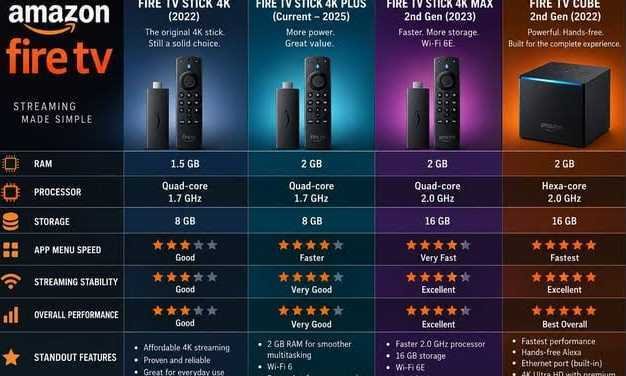
The set includes Fire TV Stick 4K Max, Fire TV Stick 4K, Fire TV Stick Lite, Fire TV Stick 3rd gen, and Fire TV Cube. Some guides also mention Amazon Firestick 4k Max, Amazon Fire TV box, and the newer Fire TV Stick 4K Select when discussing compatibility boundaries.
If you are comparing instructions across multiple tutorials, matching the exact device name often resolves half the confusion before you even touch settings.
Which Apps, Tools, and Services Are Mentioned for Kodi on Fire Stick?
The apps, tools, and services mentioned around Kodi on Fire Stick span installers, cleanup helpers, premium source services, and subtitle tools. That variety can be useful, but it also means users should separate “nice to have” from “needed to install.”
The names that come up include ES File Explorer, TROYPOINT Toolbox, Unlinked, APKTime, Aptoide TV, NordVPN, Real-Debrid, TorBox, AllDebrid, Premiumize, OpenSubtitles, Subscene, Rock Cleaner Kodi Add-on, Clean Master, Handbrake, Plex, Crackle, Pluto, and the NASA channel.
I group these into layers: installer apps, playback enhancement tools, and ongoing viewing services. That mental split keeps the Fire Stick setup focused, because not every tool that touches Kodi belongs in the installation path.